Troubleshooting Guide
Welcome to the RetRO Troubleshooting Hub. If you’re having problems launching or running the client, this page covers the most common fixes. Follow the steps below depending on the issue you’re facing.
1. Getting Started
Always run as Administrator
Right–click and set the following files to Run as Administrator:
RetRO.exeRetRO Patcher.exeopensetup.exe
Recommended setup
Set Compatibility Mode of
RetRO.exeto Windows 7 (Win10/11 users) or XP Service Pack 3.Install the game in a custom folder (e.g.
C:\Games\RetRO\) instead ofProgram Files.Update your client through Valkaria Patcher.exe regularly.
2. Antivirus / Firewall Warnings
Some security software may mistakenly flag RetRO files because of our anti-cheat systems.
✅ Fix: Add the following as exceptions in your antivirus/firewall:
- ValRO installation folder
- RetRO.exe
- RetRO Patcher.exe
Special note for Brazil
If you use Warsaw Bank Security Software, uninstall it before running ValRO. This software conflicts with Gepard Shield and prevents the client from running.
3. Gepard Shield Errors
🚫 Stuck on loading screen
Open opensetup.exe and try:
- Change Resolution or Graphics Device.
- Uncheck Play in Full Screen.
- Disable Sound.
- Use Delete all Ragnarok-related settings (factory reset).
🚫 Error Code 50 – Illegal software detected
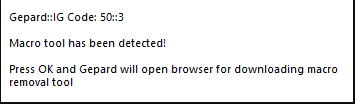
Some mouse/keyboard drivers or macro tools are blacklisted. Close them before launching RetRO. Whitelist updates are released often, so legit software may be approved later.
🚫 Error Code 1 – License validation failed
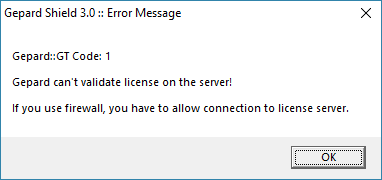
Check the following: - Stable internet connection. - Add RetRO client folder to antivirus/firewall exceptions.
4. Performance Issues (Low FPS / Freezes)
If you have Nvidia graphics (Win10/11) and the client lags/freezes:
Open Nvidia Control Panel → Manage 3D Settings.
Add Ret
RO.exeand set:Max Frame Rate → 60 FPS
Monitor Technology → Fixed Refresh
Preferred Refresh Rate → Application-controlled
Vertical Sync → Use the 3D-application setting
👉 Don’t see these options? Update your Nvidia drivers via GeForce Experience or NVIDIA’s website.
5. D3D / GRF File Issues
If you see “Cannot init d3d” or GRF file errors:
Run
opensetup.exeas administrator.In Graphics API, select DirectX 7.
Save settings and restart the client.
Final Notes
If your issue isn’t listed here, please reach out on the Discord with: - A screenshot of the error - Your Windows version - Steps you already tried
We’ll help you get back in game as quickly as possible! 🚀
Last updated